How to issue digital certificates in 2026: a complete step-by-step guide
A practical, modern guide to issuing verifiable digital certificates at scale in 2026 — covering design, bulk delivery, QR verification, and the right tooling.
Riya Sharma
Co-founder & CEO, CertSeal
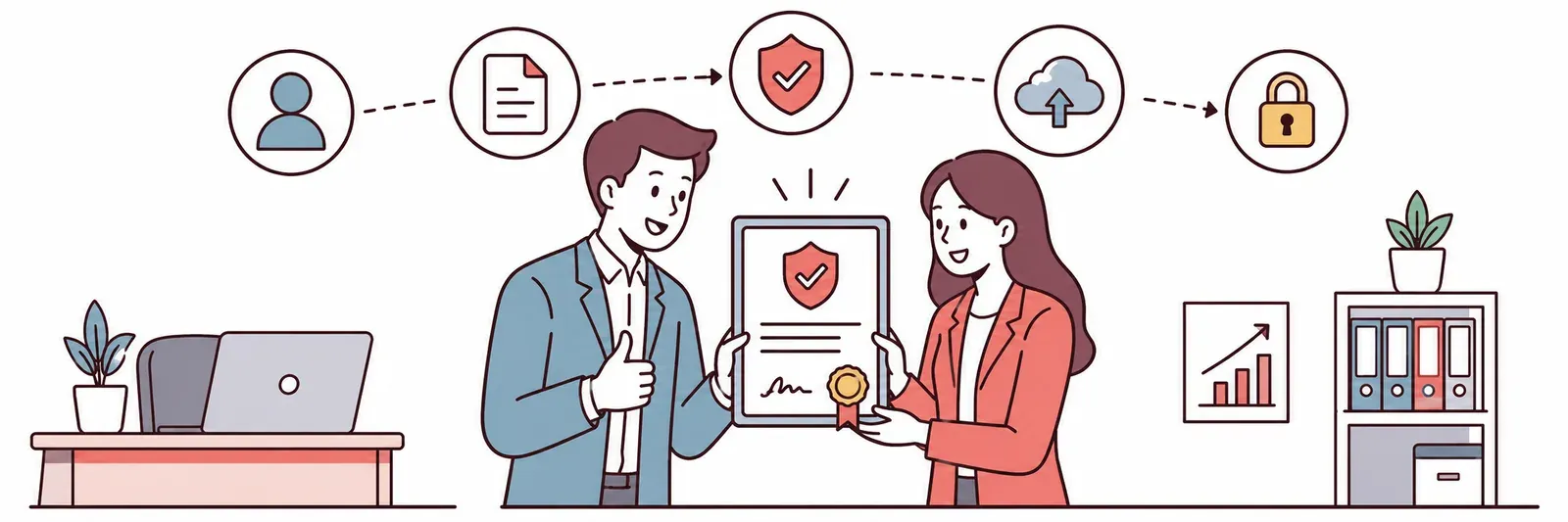
If you still send certificates as PDF email attachments, you are leaving impact (and free marketing) on the table. In 2026, recipients expect a credential that loads instantly on their phone, can be added to LinkedIn in one tap, and proves itself with a single QR scan. This guide walks through how to make that happen — without rebuilding your stack from scratch.
Why “digital” beats “PDF” in 2026
A static PDF is just a file. It’s easy to copy, hard to verify, and almost impossible to track once it leaves your outbox. A modern digital certificate fixes all three:
- Verifiable in seconds. Each credential has a unique URL and a tamper-proof QR code, so anyone can check that it was really issued by you, on the date you say, to the person you say.
- Recipient-owned. The recipient gets a permanent, login-free page they can share to LinkedIn, X, or their own portfolio. Your brand piggybacks every share.
- Measurable. You finally know who opens, shares, and re-uses every credential — which is the data you need to prove your program’s ROI.
If you remember nothing else: in 2026 a credential is not a document, it is a URL.
The anatomy of a verifiable digital certificate
Before issuing anything, get clear on the three layers your credential needs.
- Presentation layer — the visual certificate the recipient sees and shares. This is your branding moment: logo, colors, signatures, dynamic recipient data.
- Data layer — the structured payload that lives behind the URL. At minimum: recipient name, credential title, issuer, issue date, optional expiration, optional skills/competencies, and a stable verification ID.
- Trust layer — the cryptographic signature or hash that proves the credential hasn’t been tampered with. Modern platforms ship this as a verifiable credential — a signed JSON payload that anyone can validate without trusting a central authority.
A real digital credential platform — CertSeal included — handles all three for you. But understanding the layers helps you ask the right questions when you compare tools.
Step 1 — Define the credential
Before opening any tool, write down the answers to these four questions:
- Who is earning this? A learner, an employee, a partner, a customer?
- What does it prove? A skill, a completion, attendance, a milestone, a compliance status?
- How long is it valid? Forever, one year, until a renewal — or until you revoke it?
- Who will verify it? Their manager, an employer, a regulator, the public?
These answers drive everything that follows: the design, the data fields, whether you need expiry/renewal, and how loud the verification page should be.
Step 2 — Design the template
Pick a tool that lets you design in your browser with real-time preview and dynamic attributes — placeholder fields like {{recipient.name}} or {{course.title}} that get filled in per recipient.
A few design rules that hold up well in 2026:
- Use one strong typeface family. Avoid mixing four fonts because the template looks “formal.”
- Keep at least 40% of the canvas as breathing room. Crowded certificates look untrustworthy.
- Place your logo, the recipient’s name, and the verification mark in the top, middle, and bottom thirds — eye-tracking studies show these are the three regions people actually look at.
- Include the verification URL as plain text, not just as a QR code. Some people will still type it.
In CertSeal, you can pick from 2,000+ templates as a starting point, then drag in your brand kit to make it yours in minutes.
Step 3 — Bulk-generate from a spreadsheet (or your LMS)
The single biggest time saver is generating in batches. Three workflows cover 95% of real programs:
- CSV upload. Export your completers from your LMS, map the columns to your template’s dynamic fields, hit go. Done.
- Spreadsheet sync. Connect Google Sheets and trigger an issuance every time a row is added.
- API or Zapier. For higher volume, fire a webhook from your LMS, CRM, or event platform and let CertSeal generate and deliver in the background.
A good bulk flow handles three things you’ll thank yourself for later: deduplication (no double-issuing if a sync runs twice), retries (a recipient’s mailbox bouncing shouldn’t fail the whole batch), and an error report you can act on.
Step 4 — Deliver with your brand, not theirs
A branded email envelope is how most recipients first meet the credential, so don’t waste it. The essentials:
- A custom sender address (
learning@yourbrand.com, notnoreply@vendor.com) - Your logo, tone, and a short, recipient-first subject line
- One primary CTA — “View your certificate” — and nothing else
- A short reminder of why this matters (e.g., “Add this to your LinkedIn in one click”)
CertSeal lets you build multiple email templates and AB-test them by segment. The teams that run the highest engagement get this right early.
Step 5 — Verification: the most important page in your program
The verification page is the moment someone — a hiring manager, a regulator, a peer — decides whether to trust your credential. Make sure it answers, above the fold:
- Who is the issuer (your logo + verified domain)
- Who is the recipient (their full name)
- What was earned (credential title + a short description)
- When it was issued (and expiration, if any)
- Is it still valid? (a clear “Verified” badge, or a clear “Revoked”/“Expired” state)
The dynamic QR code on the certificate should jump directly to this page. A static QR (which encodes a fixed URL forever) is fine for low-stakes use cases, but if you ever need to revoke a credential, a dynamic QR — pointing to a page you control — is non-negotiable.
Step 6 — Make it sharable (this is your free marketing)
Don’t bury “share to LinkedIn.” Put it front and center on the recipient page. Pre-fill the text with the credential title and your brand handle. The result: more credentials shared means more visibility, more applicants, more participants in your next cohort.
A small but meaningful detail: when a recipient adds a credential to LinkedIn’s Licenses and Certifications section (with one click on a modern platform), the verification link is visible to everyone viewing their profile. That single connection — credential page ↔ professional profile — is what separates a forgotten PDF from a credential that compounds.
Step 7 — Measure what matters
Once you have credentials in the wild, watch four numbers:
- Open rate. Did recipients even see the delivery email? If under 40%, your subject line or sender domain needs love.
- View rate. Of those who opened, how many landed on their credential page? Under 70% means your CTA is unclear.
- Share rate. Of those who viewed, how many shared on social? In 2026, healthy programs hit 25%+.
- Verification scans. External verifications are the gold metric — they prove the credential is being used in the real world.
A platform like CertSeal surfaces all four out of the box, so you can compare cohorts, templates, and emails without spreadsheet gymnastics.
Quick FAQ
Do I need a digital signature or a real-life signature? Both. Use a digital signature (an image or font-rendered name) on the certificate art, and let the platform sign the underlying data cryptographically. Recipients see the human signature; verifiers trust the cryptographic one.
Can recipients still print my credentials? Yes — and they should be able to. A modern dynamic QR code remains verifiable when printed, even years later.
How long should I keep credentials live? Forever, unless you have a regulatory reason not to. Recipients keep referencing them, and the cost to host is trivial.
Wrapping up
Issuing digital certificates in 2026 looks nothing like emailing PDFs from a spreadsheet. With the right platform you can design once, generate in bulk, deliver under your brand, verify with a tap, and measure the impact — all from a single dashboard. Start small: pick a recent cohort, design one template, issue 50 credentials. You’ll be surprised how quickly the rest of the program follows.
Ready to try it? Start free with CertSeal and issue your first batch in under an hour.