Integrations
CertSeal for Zoom
Last updated: June 18, 2026
Connect your Zoom account and CertSeal automatically issues attendance certificates to participants when a meeting or webinar ends — no manual exports.
The CertSeal + Zoom integration reads the participant report from your ended Zoom meetings and webinars and turns each attendee into a certificate recipient. You connect Zoom once, create an automation that points at a certificate design, and CertSeal handles issuance and delivery from then on.
Prefer video? Watch the full walkthrough above, or follow the written steps below. You can also open it on YouTube.
Before you start
You’ll need:
- A CertSeal account (sign up free).
- A Zoom account that hosts the meetings or webinars you want to certify.
- A certificate design saved to a batch in CertSeal, so the automation has something to issue. Create one from Certificate Templates first if you haven’t already.
Adding the app
Connecting CertSeal to Zoom takes a couple of minutes.
- Open the Automation section. In CertSeal, open Automation from the left sidebar. You’ll see every way to put certificate issuance on autopilot — Zoom, Zapier, REST API, and CSV import.
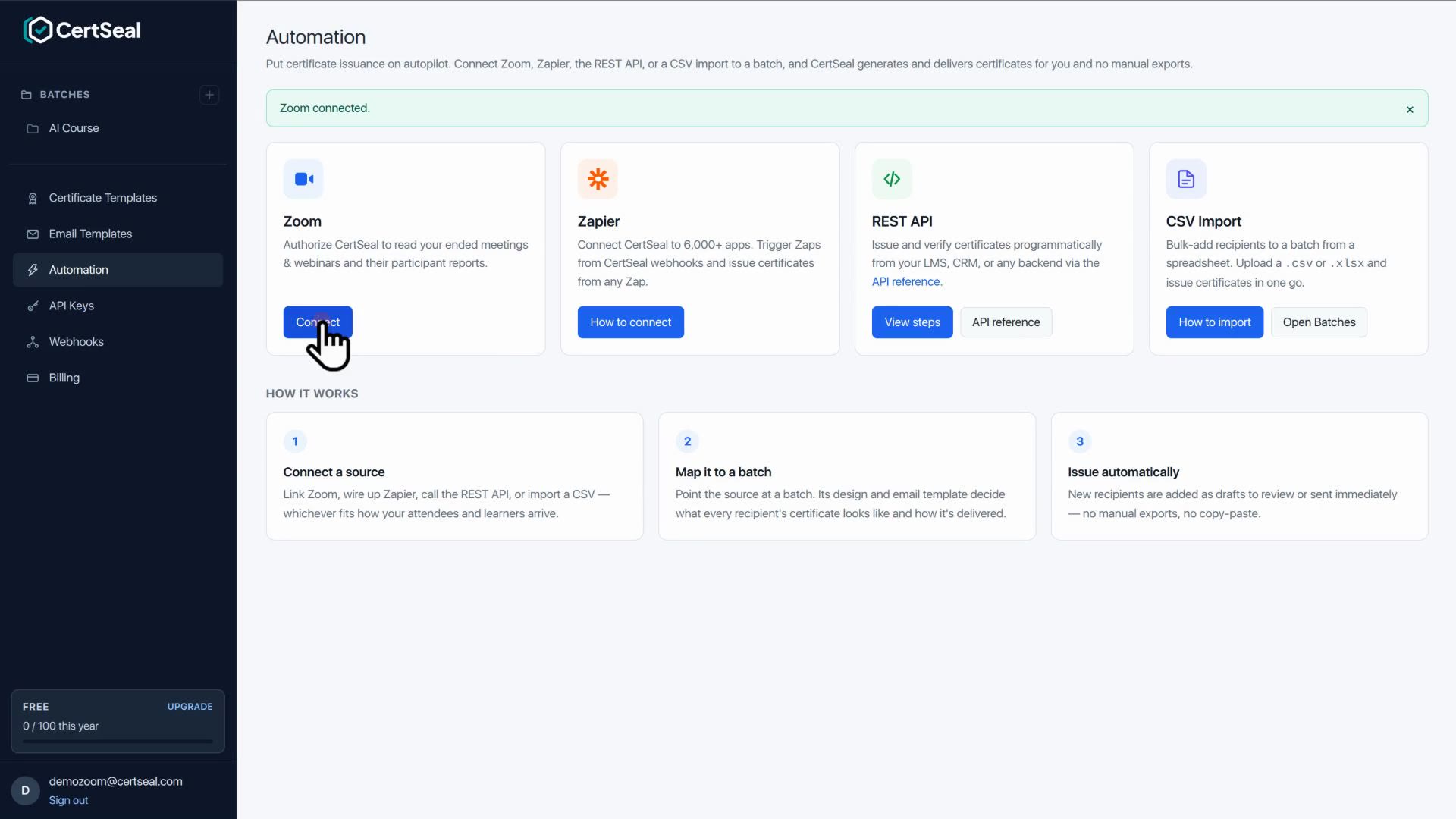
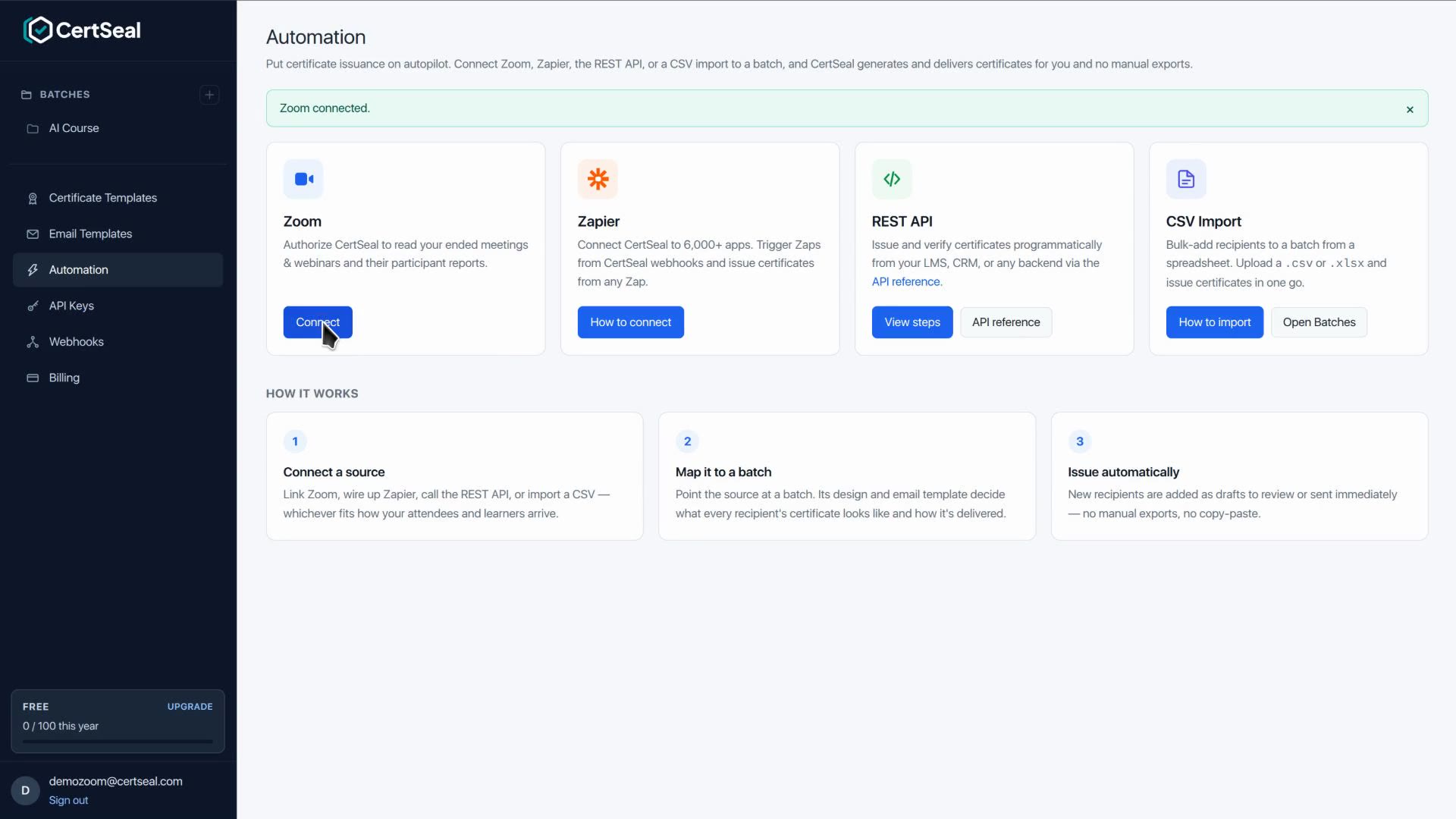
- Click Connect under Zoom. On the Zoom card, click Connect. CertSeal redirects you to Zoom to authorize access.
-
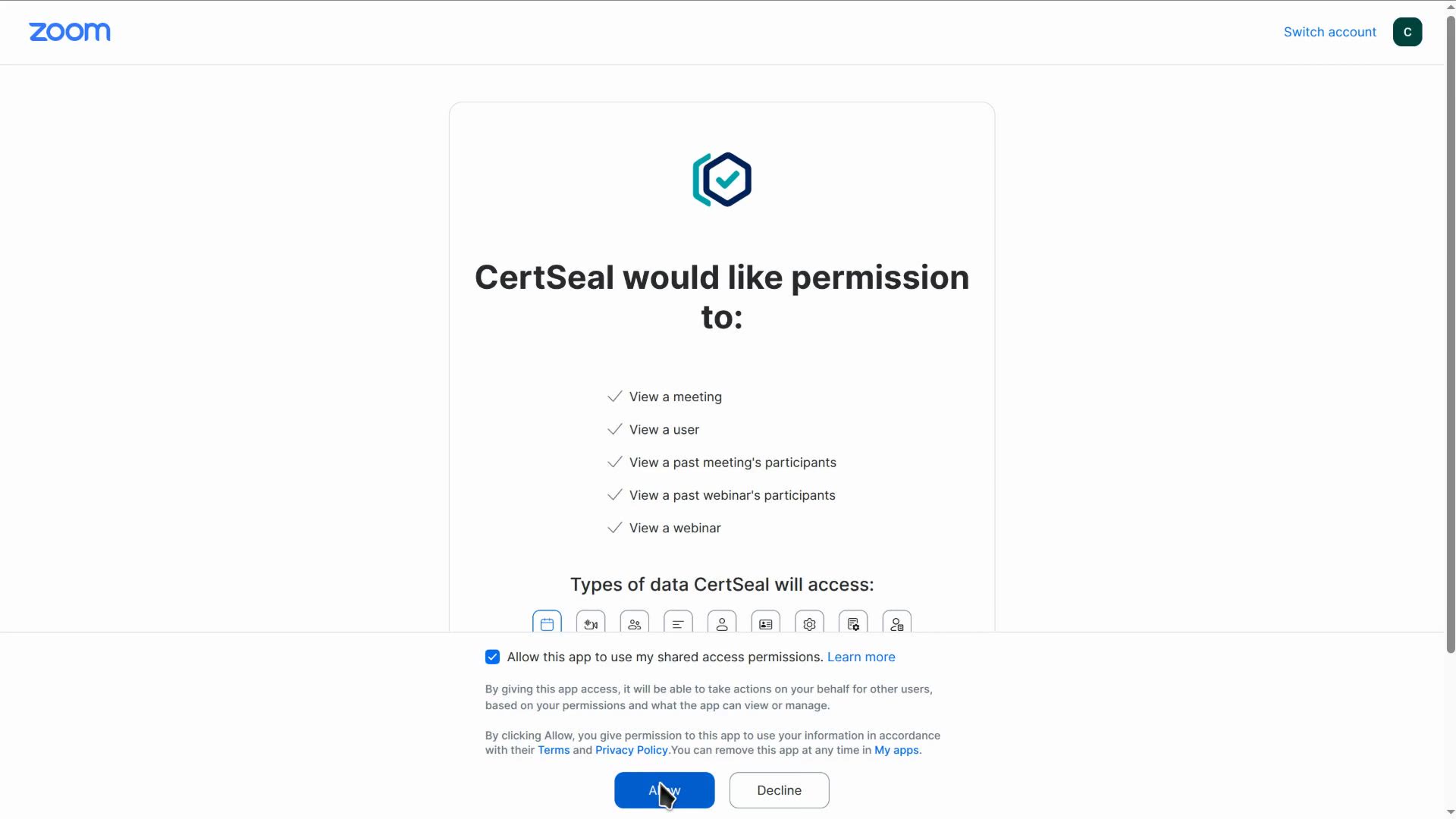
Review the permissions and click Allow. Zoom shows exactly what CertSeal can access — read-only meeting, webinar, and participant information. CertSeal cannot start, edit, or delete your meetings; it only reads ended events and their participant reports. CertSeal requests these scopes:
- View a meeting
- View a user
- View a past meeting’s participants
- View a past webinar’s participants
- View a webinar
Review the requested permissions and click Allow to continue.
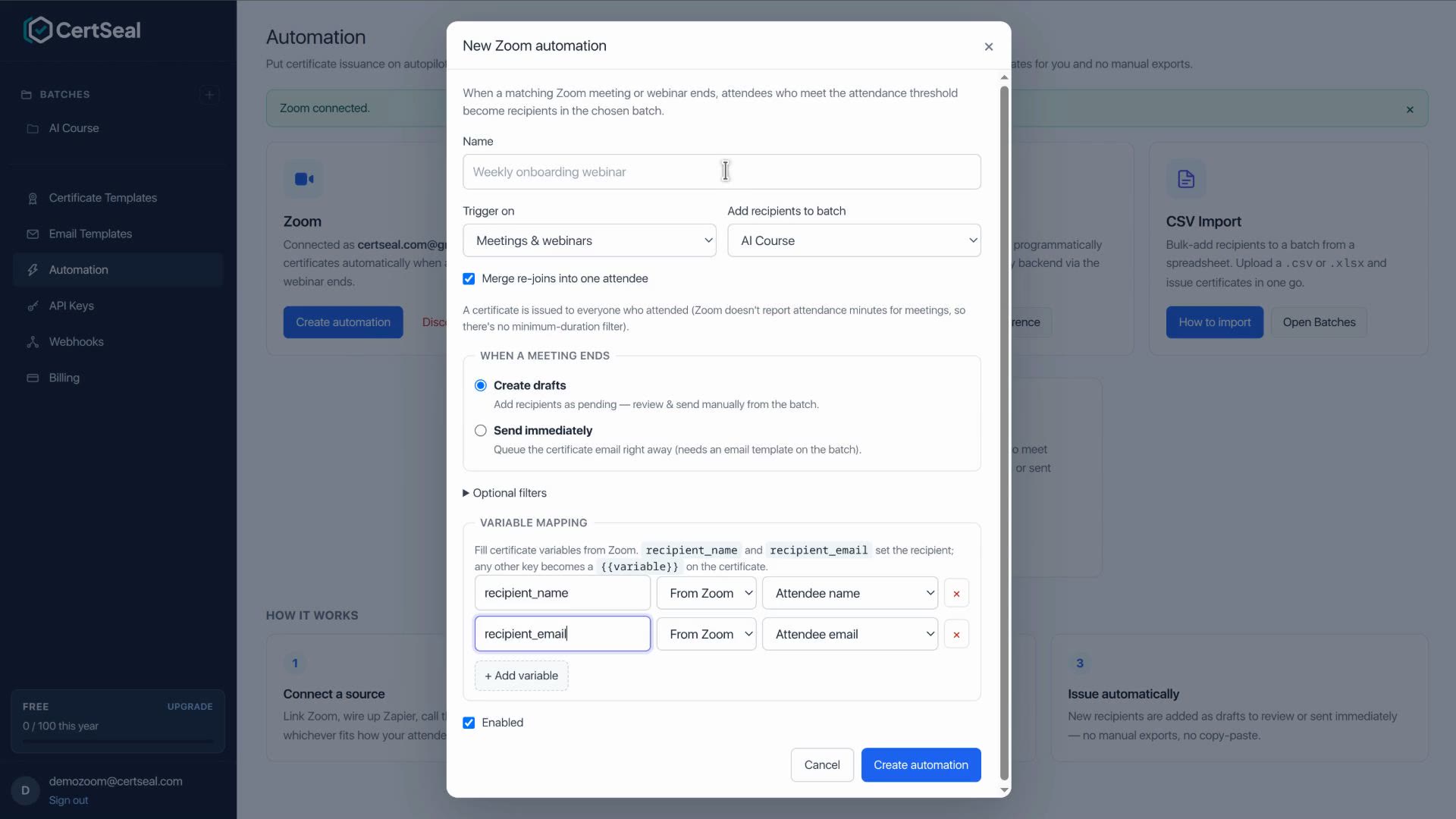
- Create your first automation. Back in CertSeal, click Create automation. Give it a name (for example, “AI Course”), set it to trigger on Meetings & webinars, and choose the batch that holds the certificate design recipients should receive.
Using the integration
Once Zoom is connected, each automation controls how and when certificates are issued.
Choose how certificates are issued. Under When a meeting ends, pick one of:
- Create drafts — attendees are added as pending recipients you review and send manually from the batch.
- Send immediately — the certificate email is queued as soon as the event ends. This requires an email template on the batch.
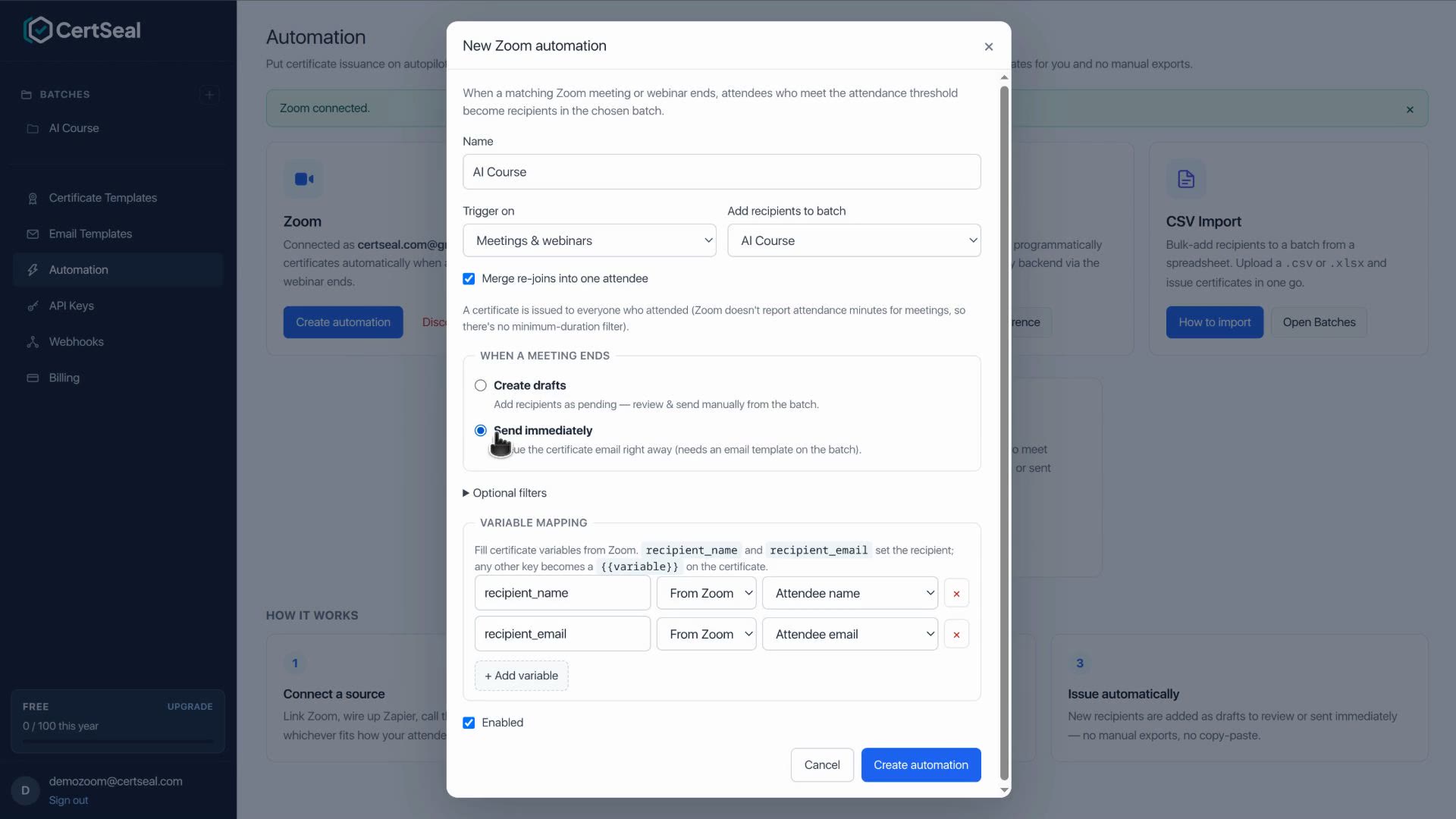
Map Zoom attendee fields to your certificate. Under Variable mapping, recipient_name and recipient_email set who each certificate is issued to (mapped from the Zoom attendee name and email). Add any other variable to fill {{variable}} placeholders on your design. Make sure the automation is Enabled, then click Create automation.
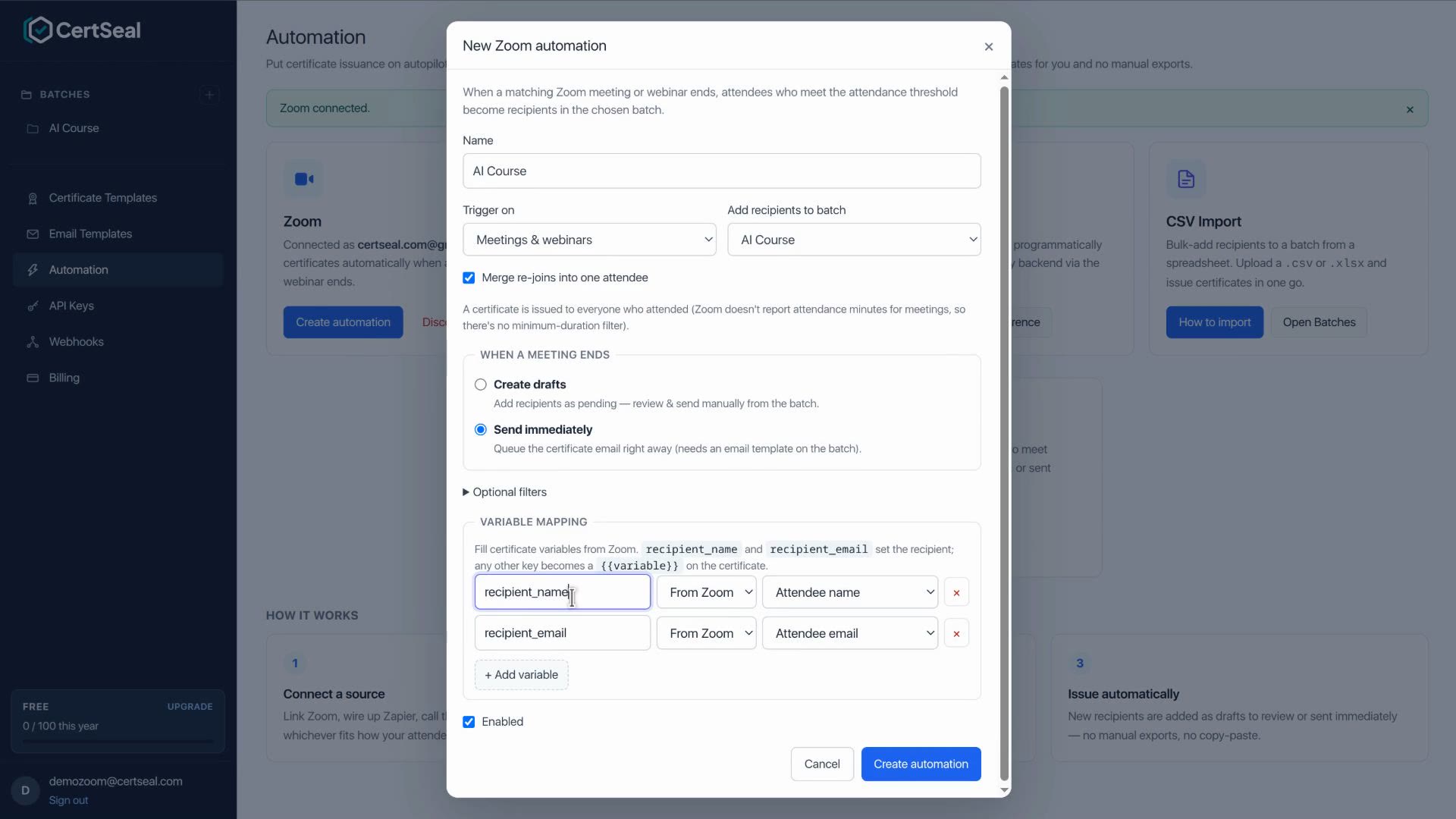
After that, the integration runs on its own: when a matching Zoom meeting or webinar ends, CertSeal pulls the participant report, creates a recipient for each attendee, and generates a certificate from your template and mapping. Common use cases:
- Webinars — issue attendance certificates to everyone who joined your Zoom Webinar.
- Workshops and training sessions — credential participants automatically when the session ends.
- Online courses — issue a completion certificate after each live class.
Removing the app
You can disconnect CertSeal from Zoom at any time, from either side:
- In CertSeal, open Automation and disconnect Zoom (or disable individual Zoom automations) to stop new certificates from being issued.
- In Zoom, go to the Zoom App Marketplace, then Manage → Added Apps, find CertSeal, and click Remove to de-authorize the app.
What happens when you remove the app:
- CertSeal’s access tokens are revoked immediately, so it can no longer read your meetings, webinars, or participant reports.
- Any active Zoom automations stop running — no further certificates are issued from Zoom events.
- Certificates that were already issued remain valid; removal only stops future issuance.
Removing your data. De-authorizing CertSeal from Zoom triggers deletion of the Zoom data CertSeal stored to run your automations (such as cached participant reports). If you’d like us to confirm deletion or remove data sooner, email support@certseal.com from your account address and we’ll process the request.
Support
Need help with the Zoom integration? Email support@certseal.com and a real person will reply, typically within 1 business day (Monday–Friday, 9:00 AM–6:00 PM SGT). See the support guide for all contact options and response times.